Building 3 Magical Counter Buttons In Javascript
Let's learn Javascript Function, EventListeners, and Dom Manipulation by building a counter.
5 years ago
8 mins readHello 🙋♂️, my gorgeous friends on the internet.
Today we will be building 3 buttons that will be performing magics on our browsers.

yeah, magics!!!
And one of each button will perform one of the following functions:
- Increase the counter
- Decrease the counter and
- Reset the counter
and finally, we will have a section where our counter will be displayed.
At the end of this article, you will have the idea on the following concepts
- DOM manipulation
- Functions and
- Event Listeners
without any further ado, let's dive into it.

The first thing to do is to create the following files, where our codes will live
a. counter.html
b. counter.css
c. counter.js
Copy-paste the following code into the counter.html
<!DOCTYPE html>
<html lang="en">
<head>
    <meta charset="UTF-8">
    <meta name="viewport" content="width=device-width, initial-scale=1.0">
     <!-- Css file -->
    <link rel="stylesheet" href="./counter.css">
    <title>Counter Tutorial</title>
</head>
<body>
    <main>
        <h1>Timer System</h1>
        <section class="counter">
            <!-- where the counter will be displayed-->
            <p id="counter-board">0</p>
        </section>
        <!-- Button section -->
        <section class="buttons-section">
            <button id="increase-btn">Increase</button>
            <button id="reset-btn">Reset</button>
            <button id="decrease-btn">Decrease</button>
        </section>
    </main>
    <!-- Javascript file -->
    <script src="./counter.js"></script>
</body>
</html>
The above code has two main sections which are the counter section, where our counter value will be displayed, and the buttons-section for our three (3) magical buttons.
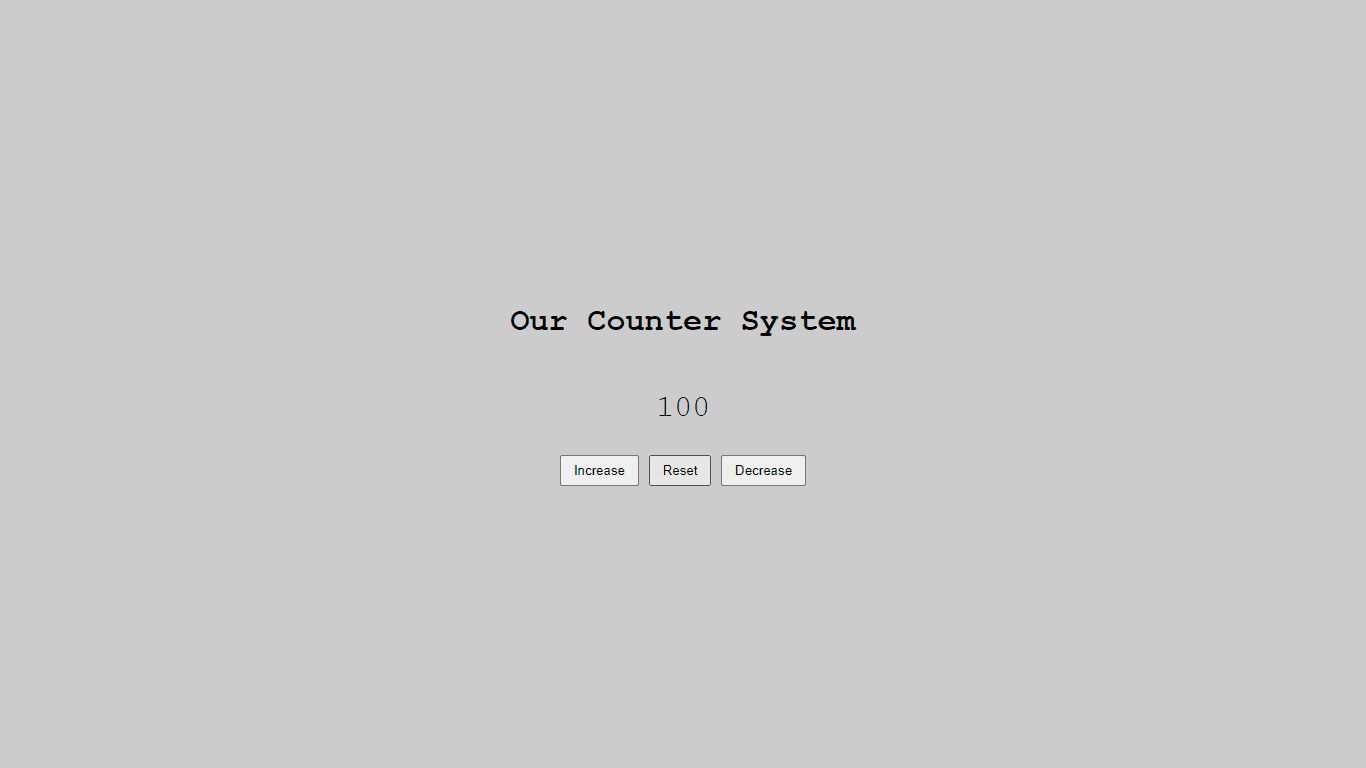
Your HTML file should display like this on your browser after running it.

The counter section has a paragraph tag that displays the state of our counter as it is been increased, decreased, or reset.
The buttons-section contains the 3 buttons that will trigger an action to the counter, based on the functions we will be binding to them very soon.
You will agree with me that our page layout doesn't look attractive yet, so let us style up our buttons and the entire counter.html file.
The CSS and JavaScript files have been linked to your HTML file, just ensure they are in the same folder directory.
copy-paste the following CSS code into the counter.css file.
body{
    padding: 0;
    margin: 0;
    box-sizing: border-box;
    background: #cccccc;
    font-family: 'Courier New', Courier, monospace;
}

main{
    display: flex;
    flex-direction: column;
    justify-content: center;
    align-items: center;
    height: 100vh;
}

#counter-board{
    font-size: 30px;
}

.buttons-section button{
    padding: 6px 12px;
    cursor: pointer;
}
Save your file and reload your web browser, you should have a much better display on your browser, you can proceed to give the buttons some more styles 😉😉😉

If the CSS styles do not reflect on your browser, do the following 🤔
- Ensure the 3 files of our project are inside the same folder (beside each other)
- Cross-check if the CSS link isn't broken
For some reasons, if 1 and 2 don't work
- Create a style tag and copy-paste the CSS code in-between the tags (internal CSS)
If all works well, then let's dive into the main functionality using pure JavaScript.
Like I said earlier, we will be learning 3 concepts from this project, which are
- DOM manipulation
- Functions and
- Event Listeners
1. DOM MANIPULATION
The Document Object Model (DOM) is an application programming interface (API) for HTML and XML documents. It defines the logical structure of documents and the way a document is accessed and manipulated. In other words, DOM is a way of getting access to the HTML elements and doing something with them.
The first step is to get access to all the HTML elements we want to make use of in our javascript file through their assigned id attribute, the HTML elements include; the button with an id
increase-btndecrease-btnreset-btnand- a
<p>tag withcounter-boardid.
copy-paste the following code into your counter.js file
// get the increase and decrease button
const incrementButton = document.getElementById("increase-btn");
const decrementButton = document.getElementById("decrease-btn");
const resetButton = document.getElementById("reset-btn");


// get the counter board value
const counterBoard = document.getElementById("counter-board");
what's happening in the above code section is that we are getting the HTML elements through the document.getElementById, it's like saying hey "there is an element with an id of increase-btn in our HTML document get it for us, and assign it to the variable name by the left, so we do not need to be accessing the DOM again whenever we need them.
The next thing is to create a variable that will keep track of our counter value/state.
Add the following code below the previous section
// variable holding the counter value
let counterValue = 0;
The default value is set to be zero in this article, this can be changed based on your preference.
Note:
constwas used in declaring theDOMelement because we do not want their values to change.letwas used for the counter variable because we want the value to be altered.
Here is a LINK to my article if you want to learn more about
var,constandletand when to use them.
2. FUNCTIONS
The increment functionality
we want the counter to increase by 1 whenever the increase button from the HTML document is been clicked, in order to achieve this, we need to create a function that can be invoked or called whenever the button is clicked.
But before that What is a function?
A function is a block of organized, reusable code that is used to perform a single, related action.
This is safe to say, the act of eating, walking, and dancing is a human function, when you've been called to eat, you walk to eat and dance when the music is on. I hope you get the gist.
Now add the following code section to the previous sections
// function that increases the counter by 1
const increaseCounter = () =>{
    counterBoard.innerHTML = ++counterValue;
}
we created a variable named increaseCounter and we assigned a function to it as a value, which means whenever the increaseCounter is been called or invoked the function block inside of it will be executed.
so, How does this increaseCounter work? 🤔🤔🤔
- The
++counterValuemeans, we're increasing the current value of thecounterby 1 each time the function is been invoked or called through the button. - The counterBoard.innerHTML, we are telling the counterBoard element to change its value or text to the result value from ++counterValue
The decrement functionality
Just like the way we increase the counter each time the increment function is been invoked by the increase button, the decrement functionality is responsible for decreasing the counter by 1 each time it is been invoked by the decrease button,
Let's add the following code section to the previous sections
// function that decreases the counter by 1
const decreaseCounter = () =>{
    counterBoard.innerHTML = --counterValue;
}
we created a variable named decreaseCounter and we assigned a function to it as a value, which means whenever the decreaseCounter is been called the function block inside of it will be executed.
so, How does the decreaseCounter work?
decreaseCounter works in reverse order of the increasecounter function
- The --counterValue means, we're decreasing the current value of the
counterby 1 each time the function is been invoked or called through the button. - The counterBoard.innerHTML, we are telling the counterBoard element to change its value or text to the result value from --counterValue.
The reset functionality
we need a way to reset the counter value back to its initial value after some time, to achieve this, we will be creating a function that updates the counterValue back to zero and also updates the UI by setting the counterBoard.innerHTML to zero which is the preferred initial value for this tutorial.
Include the code below in your javascript file
const resetCounter = () =>{
    // Update the UI
    counterBoard.innerHTML = 0;
    // Update the variable container
    counterValue = 0;
}
Now we have completed our increase, decrease and reset function which will also updates the UI and counterValue accordingly.

The next thing is to connect/bind the functions to their respective buttons using the addEventListener
The event listener waits for an event to occur on the elements they are added to. The listener is programmed to react to an input or signal by calling the event's handler.
What that means, in a nutshell, is, listen for an event (focus, blur, change, submit.) on this particular element. You will see how we will use them very soon.
do you remember these lines of code?
// get the increase and decrease button
const incrementButton = document.getElementById("increase-btn");
const decrementButton = document.getElementById("decrease-btn");
const resetButton = document.getElementById("reset-btn");
where we got access to the HTML button elements for later use, now, we're going to add an event listener to them, to listen for a click of those elements.
add the code below to your counter.js file
// Add event listener to the buttons
incrementButton.addEventListener('click', increaseCounter);
decrementButton.addEventListener('click', decreaseCounter);
resetButton.addEventListener('click', resetCounter);
The code above means, addEventLister that waits for a click event on these buttons, and once they are been clicked, run the function bind to them.
Now let's proceed to test our features 🏃♀️🏃♀️🏃♀️
Save all your files and refresh your browser if you're not using a live server
Let's test our increment functionality by clicking on the increase button twice


Hurray, our increment functionality is working perfectly, let's proceed to test our decrement functionality.
Just like the way we clicked the increase button, click the decrease button once and we should have


Finally, let's test our reset functionality, and our counterValue should be back to zero

and that's it.

we are able to make use of function, eventListener and Dom manipulation in this tutorial to build our magical buttons.
Thanks for reading this far, I hope you have learned one or two things from this article?
If you find this helpful feel free to drop an 👍 on the article. It inspires me to continue improving and make more awesome content.
If you would like to connect with me then come and say hi @unclebay143 as I am always active in communicating with other developers on Twitter.
Thanks!
Enjoyed this article?
Subscribe to my YouTube channel for coding tutorials, live project builds, and tech discussions.
Subscribe